Sign up for Lena for Teachers, join your school, accept course invitations and work through the Get started checklist.
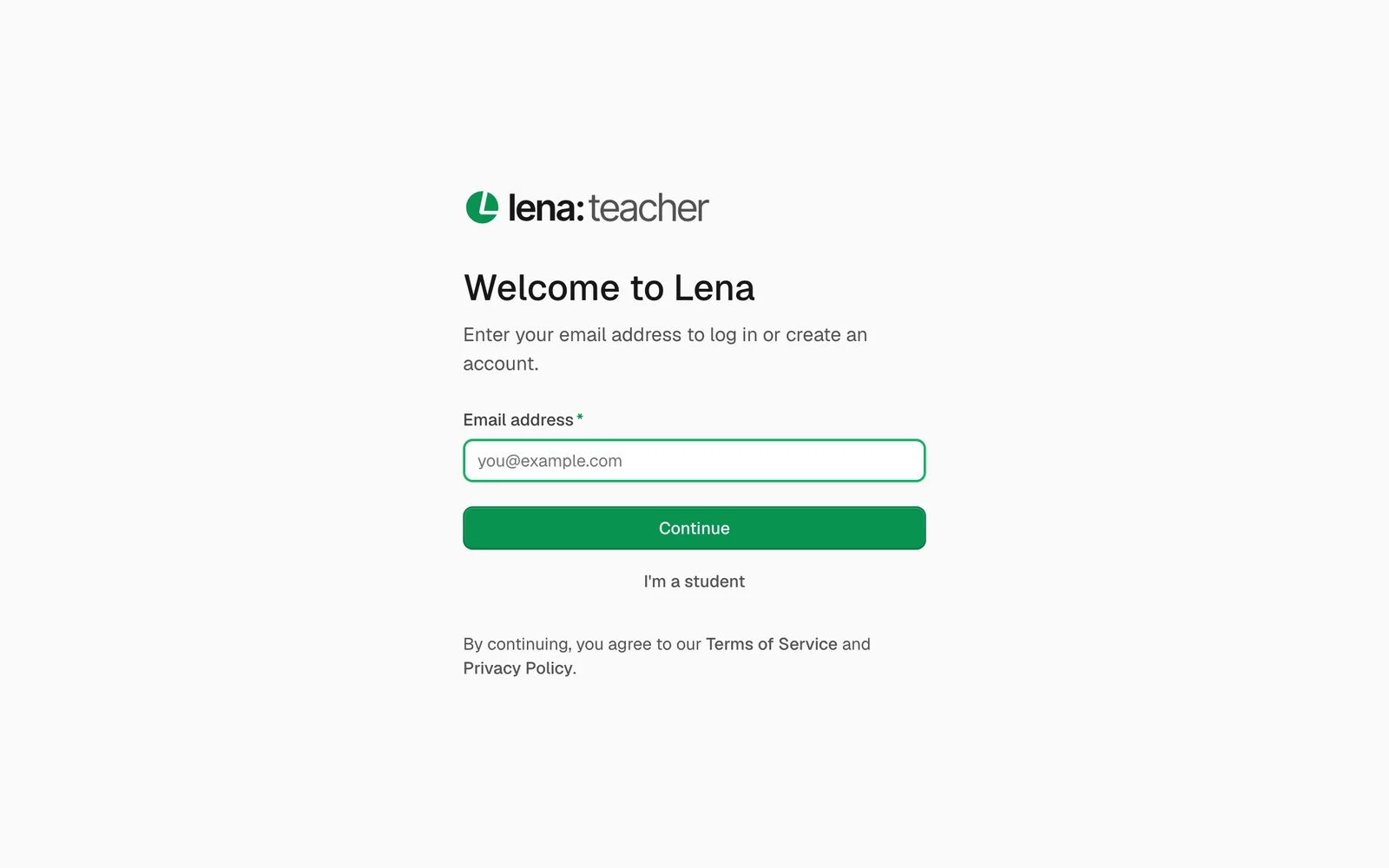
To teach in Lena you need a Lena account and a teacher profile at your school. You set up both yourself. If you
already use Lena in another app, sign in with the same email.
If you already have a Lena account, enter your Password and choose Continue. If you’re new, Lena emails
you a 6-digit code. Type it in, and Lena moves on by itself.
3
Create your account
New here? Enter your First name, Last name and a Password, then choose Create account.
For codes that don’t arrive, password rules and forgotten passwords, see sign in to Lena.
After you sign in you see your schools. The first time, the list is empty.
No schools yet: add yours.
1
Add a school
Choose Add school.
2
Tell your school who you are
Enter your Title, such as “Dr.”, and your Staff ID: the staff or employee number your school gave you.
Students see your title. Then search for your school under School and choose it.
Dr. Ngozi Okafor joining Crestview University.
3
Join
Choose Join school. Your school appears in the list.
4
Open it
Choose your school to open it. You land on Courses.
Teach at more than one school? Choose Add school again. Switch between them from your school’s name at the top
left of the app. See schools and profiles.
If another teacher invited you to help on their course, the invitation waits under “Courses you’ve been invited to”,
above your schools. Choose Accept, then Accept invitation. If you’re already in the app, you’ll find it on the
Courses page under Invites. See people and roles.
A Get started card at the foot of the sidebar walks you through your first week. Each step opens the right page:
Step
What it asks
Create a course
Set up your first class
Share class info
So students can join you
Create an assignment
Give students work to do
Schedule a class
Add it to your calendar
Post an announcement
Share an update with your class
Each step ticks itself off when you do it, and the card goes away once they’re all done. To hide it sooner, move your
pointer over the card and choose ✕. It stays hidden for this school, on any device you use.
The list shows only schools that use Lena, and leaves out schools you’ve already joined. If yours is missing, ask
your school whether it uses Lena, or contact support.
I don’t know my staff ID
Ask your school’s registry or HR office. Lena needs it before you can join, and your school uses it to check who you
are.
“You’ve joined every school”
You’re already in every school on Lena. Choose Back to profiles and open yours from the list.
I’m a student, not a teacher
You’re in Lena for Teachers. Choose I’m a student on the first page to go to Lena for Students.