

Choose a school
After you sign in, you see your schools, each as a card. Choose one to open it.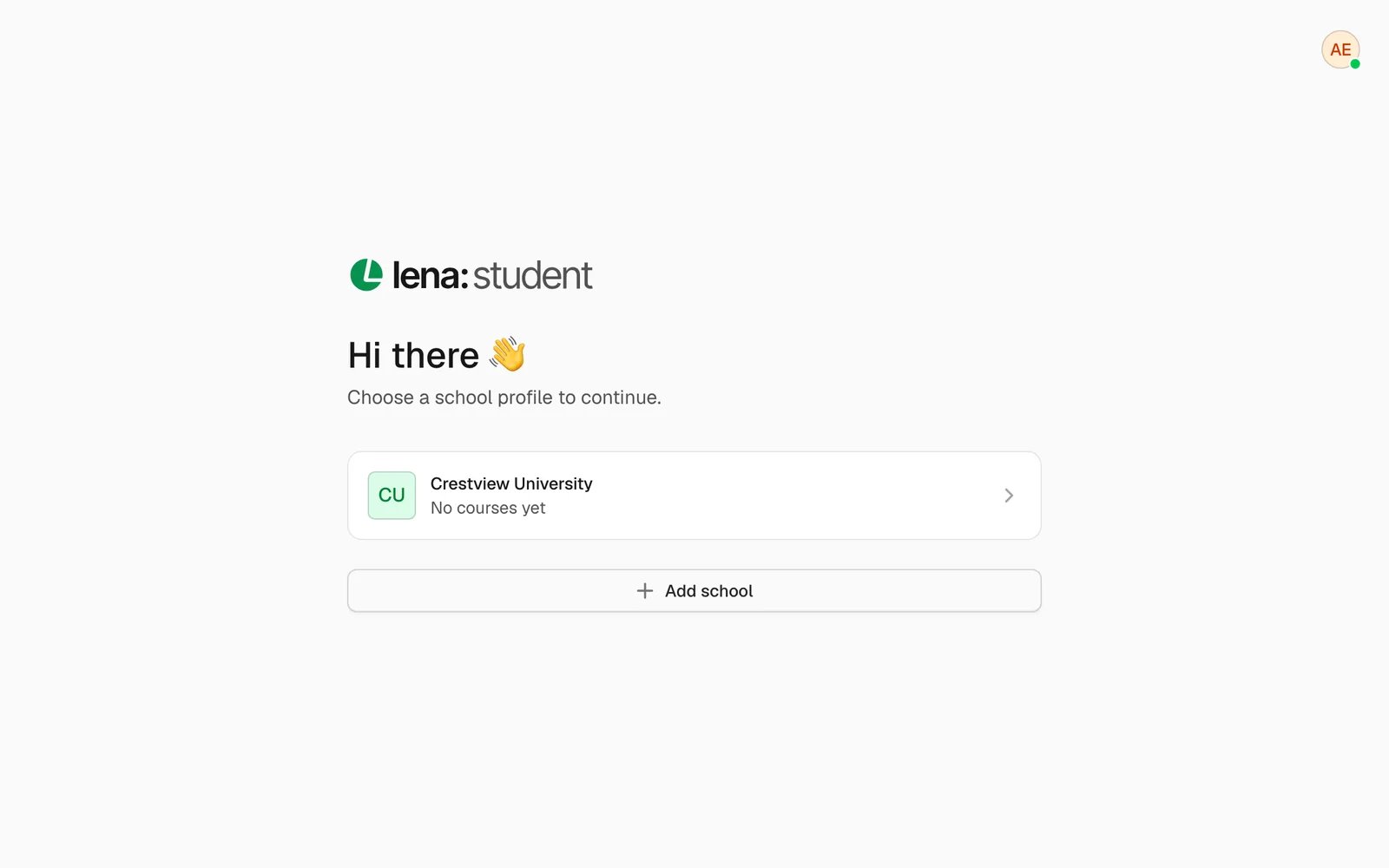
Amaka’s schools in Lena for Students. Each card says how many courses she’s in there.
- Lena for Students shows “Enrolled in 3 courses” (or “No courses yet”) on each card.
- Lena for Teachers shows “Teaching 2 courses”. Course invitations from other teachers appear above your schools under “Courses you’ve been invited to”, with Accept and Decline.
- Lena for Schools marks the school you’re in with “Current”, and lists invitations to help run a school under “Schools you’ve been invited to”, each with Accept.
Add a school
Choose Add school on your list of schools, or in the school switcher (below). What happens next depends on the app.- Students
- Teachers
- School admins
Search for your School, then choose where you sit in it: at a university, your Faculty, Department and
Level; at a K-12 school, your Grade and Arm. You can also add your Matric number (or Class
number). Choose Join school. You’re in straight away, with no approval step.
Switch school
At the top left, choose the school’s name (Switch school). The menu lists your schools; choose another to move to it. On a phone, the button shows only the school’s picture. The same menu has:- All schools, which takes you back to your list of schools. In Lena for Teachers and Lena for Schools it shows how many invitations are waiting.
- Add school.
Links from another school
A link to a course, assignment or other page belongs to one school. If someone sends you a link from a school that isn’t the one you have open:- If you’re in that school too, Lena asks “Open this in Crestview University?” Choose Switch to go there, or Not now to stay in the school you have open.
- If you’re not in that school, you see “This link is for a school you’re not in”. Ask whoever sent it to share it from your own school, or sign in with the account that belongs to that school. Go to Lena takes you home.
Leave a school
Leaving removes your profile at that school, and it can’t be undone. Your account and your other schools stay.- Students
- Teachers
- School admins
Go to Settings → School and choose Leave school, then confirm with your password. You lose your place in
that school’s courses.
Next
Settings
Your profile, your place at the school, and your preferences.
Join a course
For students: enrol with a code, or from the list.