

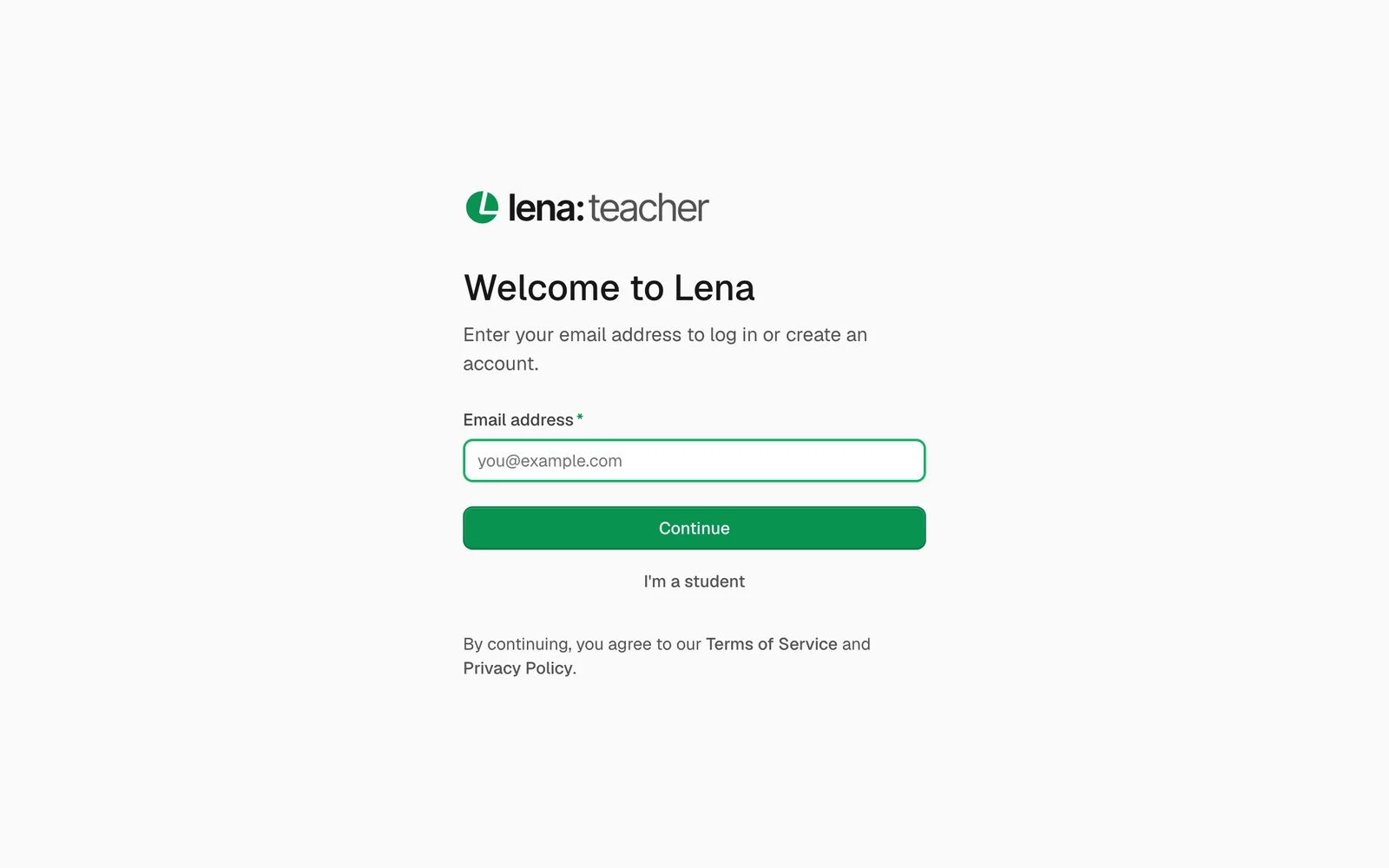
Enter your email and choose Continue. Lena works out whether you have an account.
Create an account
1
Enter your email
Open your app (see which app to open), enter your Email address, and choose
Continue. If the email has no account yet, Lena emails you a 6-digit code.
2
Enter the code
On “Check your email”, type the code. Lena checks it as soon as you type the sixth digit.
3
Set up your profile
On “Create your account”, enter your First name, Last name and a Password, then choose Create
account.
4
Choose or join a school
You land on your list of schools. A new account has none yet, so add one: see schools and
profiles. To start a brand-new school, see create your
school.
Sign in
Enter your Email address, choose Continue, enter your Password, and choose Continue again. You go to the page you were heading to, or to your list of schools. Forgotten your password? See below.The code
- It’s 6 digits, sent to the email you entered.
- Can’t find it? Check your spam or junk folder before you ask again.
- If it doesn’t work, choose Resend under the code boxes for a new one. Resend appears after a short countdown.
Password rules
A checklist under the password field ticks off each rule as you type:- Minimum of 8 characters
- Uppercase letters
- Lowercase letters
- At least a number or symbol
Forgot your password
1
Ask for a code
Enter your email and choose Continue. On the password step, choose Forgot password?, then Send code.
2
Enter the code
Type the 6-digit code from your email.
3
Set a new password
Enter a New password and Confirm password, then choose Reset password. Use a password you haven’t used
before. Lena signs you out on every other phone and computer, then takes you back to sign in with the new password.
If your school added you
If your school added you from a spreadsheet, it gives you your sign-in details: your email and a first password. Sign in with them, then change your password straight away in Settings → Account → Change password (see settings). Keep your sign-in details to yourself. If your school invited you on your own instead, your sign-in details come by email.Sign out
Open the account menu (your picture, top right) and choose Log out, then Sign out to confirm. You can also sign out from Settings → Account. Signing out also stops push notifications on that device, and removes your Lena data from it. If something you did offline hasn’t been sent yet, Lena warns you first, for example “2 changes haven’t synced”. Choose Stay signed in and it goes when you’re back online. Sign out anyway deletes it.Troubleshooting
“Password is incorrect”
“Password is incorrect”
The password doesn’t match this email. Check Caps Lock, or choose Forgot password? to set a new one. If your
school imported you, use the first password from the sign-in details it gave you.
“OTP incorrect”
“OTP incorrect”
The code is wrong or out of date. Use the code in the newest email from Lena, or choose Resend for a new one.
The code never arrives
The code never arrives
Check your spam and junk folders. Then check the email address on the “Check your email” page. If it’s wrong, choose
Back and enter it again. If it’s right, choose Resend once the countdown ends.
Lena asks me to wait before trying again
Lena asks me to wait before trying again
You asked for too many codes, or tried to sign in too many times, in a short while. Wait as long as the message
says, then try again. If a recent code is already in your inbox, try that one first.
“Password does not meet all requirements.”
“Password does not meet all requirements.”
One of the checklist items is still unticked. Add what it asks for: 8 characters, an uppercase letter, a lowercase
letter, and a number or symbol.
Lena says my password is too common, too like my email, or all numbers
Lena says my password is too common, too like my email, or all numbers
Your password ticks every checklist item, but it’s still too easy to guess. Choose one that isn’t like your name or
email, isn’t a well-known password, and has letters in it.
“Passwords do not match.”
“Passwords do not match.”
New password and Confirm password must be the same. Type them again.
I refreshed the page and I’m back at the start
I refreshed the page and I’m back at the start
Refreshing the page during sign-in takes you back to “Welcome to Lena”. Enter your email again, and don’t refresh
until you’re signed in.
“Something went wrong. Please try again.”
“Something went wrong. Please try again.”
Lena couldn’t finish the step, often because your connection dropped. Check you’re online and try again. If it keeps
happening, contact support.
Next
Schools and profiles
Join a school, choose one, and switch between them.
Settings
Change your password, email and preferences.