What Lena Agent is, where to find it in Lena for Teachers, who can use it, and what a chat with it looks like.
Lena Agent does the routine work in your courses, and you check it. Ask in plain
words, such as “Make a 10-question quiz from my Week 3 notes” or “Who hasn’t
submitted Essay 1?”, and it looks things up, drafts the work and links you to
what it made. By default, anything that can’t be taken back, or that reaches
students, waits for your approval. Marks and released grades always do.It lives in Lena for Teachers and works as you: it can do what you could do in
the app, in the school you have open, and nothing more.
In the sidebar. Choose AI Agent at the top of the menu. Or flip the
sidebar switch from Home to Agent: you then see New chat, your
Daily brief and your past chats.
Beside any page. Choose Ask Lena in the top bar, or press ⌘J (CtrlJ
on Windows). The agent opens in a panel next to the page and already knows what you’re looking at. See
Ask Lena from any page.
Each morning. The daily brief lists work it could
take off your plate.
Your school must have it switched on. Lena’s team turns Lena Agent on for
a school. Until then you see “Lena Agent isn’t on for your school” and can
choose Request access. See
limits and access.
Your role must include it. A course’s Owner, Teacher and
Assistant can use it. Other roles see “The AI agent isn’t available. Your
role on your courses doesn’t include it.”
AI Agent opens on “What can I help you with?”. Type your request in the message box and press Enter
(ShiftEnter starts a new line). Below the box you can attach files (+), choose how the
agent asks for approval (the shield), narrow the chat to one course (All courses), dictate, and see how much of
today’s allowance you’ve used (the ring).
The compose screen, with the controls under the message box.
2
Watch it work
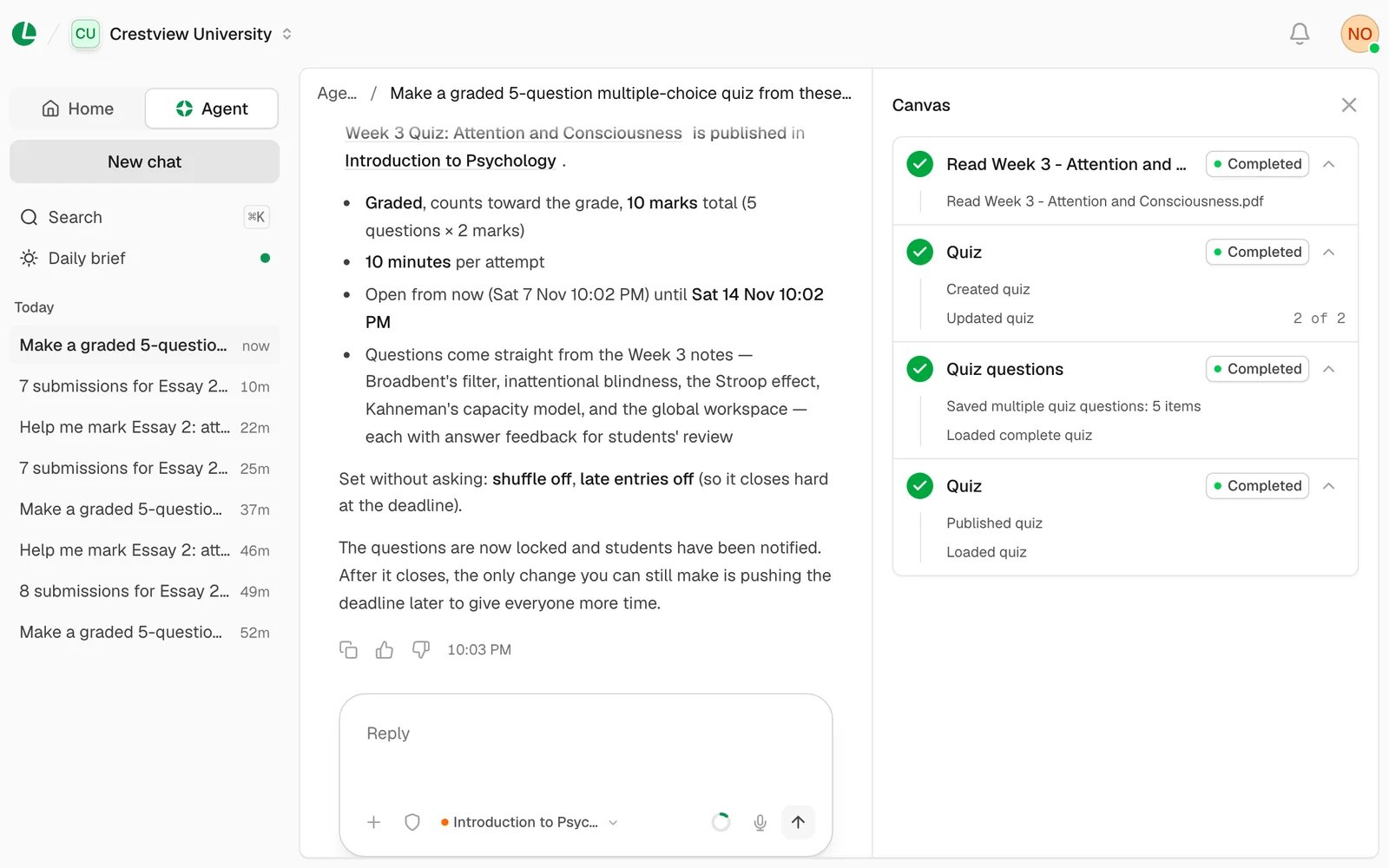
While it works you see “Working” and each step as it ticks off, such as “Loaded courses”, “Creating quiz” and
“Publishing quiz”. When the answer starts, the steps fold into a line like “Worked for 16s · 3 steps”, which you can
open again. Choose Show canvas to follow the steps and links in a side panel.
3
Answer its questions
If it needs something from you, such as whether a quiz is graded or practice, it shows a short form. Choose an answer
and Continue, then Submit. You can also answer in the message box.
4
Approve what matters
Before anything one-way, like publishing a quiz, it shows a card such as “Publish a quiz” with every detail. Choose
Approve or Decline. See approvals and safety.
5
Open what it made
New courses, quizzes, assignments, exams, discussions and announcements appear as cards with an Open link. Names
in its replies link to the record in the app.
A quiz the agent made from a teacher’s notes, ready to open.