

Open your brief
In the sidebar, switch to Agent and choose Daily brief. A dot shows beside it until you’ve opened today’s brief. The brief starts with the date and a line such as “Four things I could take off your plate.” Below it, each course has its own section with up to five items. Each item says what Lena noticed, shows the evidence, and offers a button.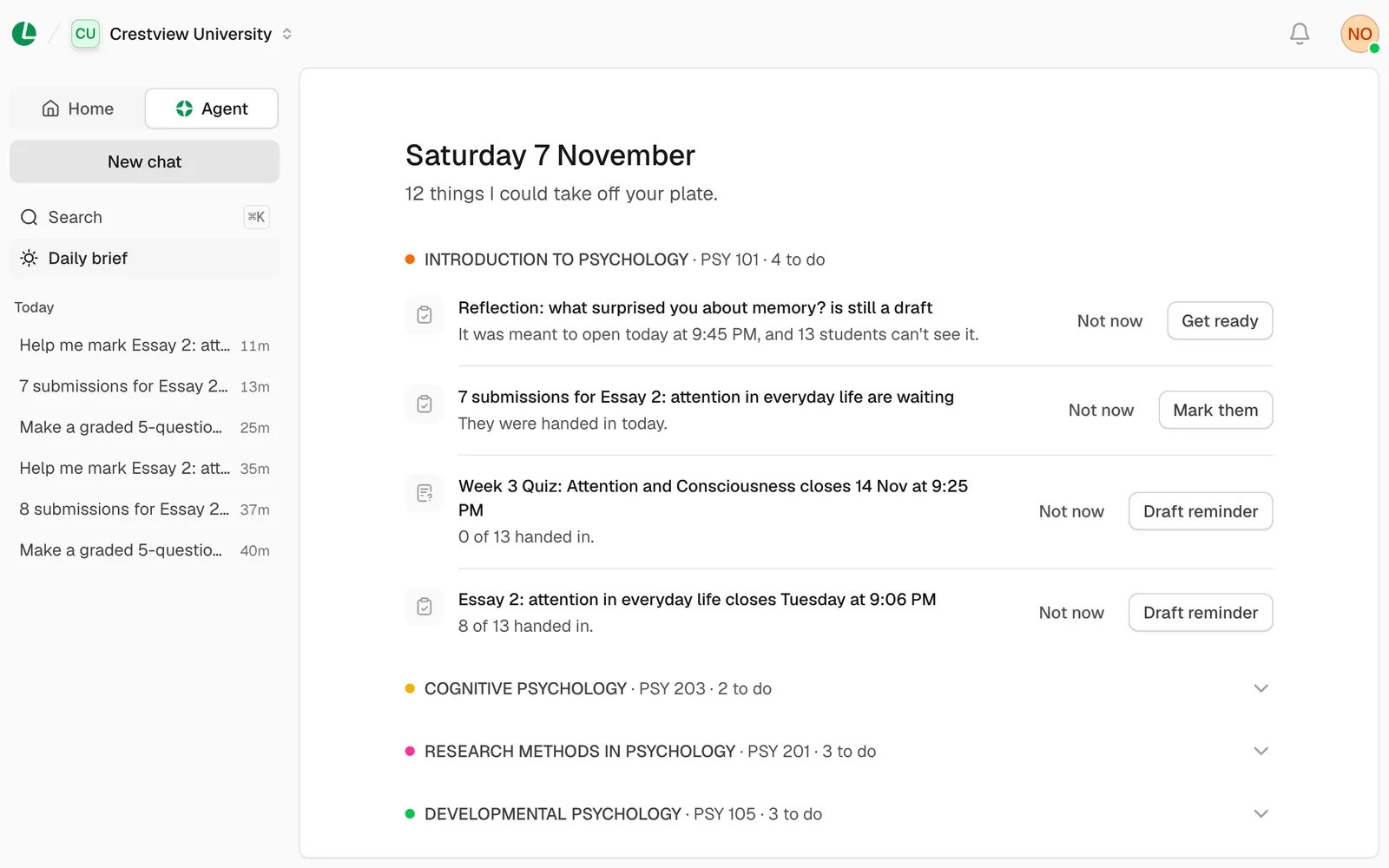
The daily brief, one section per course.
What it offers
Choosing a button opens the agent in a panel beside the brief, already asked.
The item then shows how it’s going (Working, Ready, Done, Failed
or Stopped), with Open to go to the chat. You can close the panel and
stay on the brief.
Not now
Not the right moment? Choose Not now on an item, then say Why not?:
Changed your mind? Choose Undo on the message that appears. Your choices apply on this device only.
When the brief is empty
- “You’re all caught up. Lena will bring anything new here.” Nothing needs you right now.
- “Your brief fills in once you teach a course here.” You don’t teach a course at this school yet. Choose Set up course and the agent helps you create your first one as a draft.
- “The daily brief is off.” Choose Turn on, or use the switch in Settings (below).
- “Your brief didn’t load.” Check your connection and try again.
Turn it on or off
The brief has two switches, set for each school. Open your account menu, choose Settings, then School.- Daily brief: the page, and the dot in the menu. Turning it off also stops the morning message.
- Morning message: a push notification and an inbox note at 7:00 AM, school time, on days when work is waiting.
Good to know
- Reading the brief is free. It doesn’t use your daily allowance. Choosing a button starts an agent chat, which does.
- A button only starts the conversation. Grades always wait for your approval, and reminders and publishing do too unless you’ve chosen Skip all approvals (see choose how it asks).
Next
Ask Lena from any page
The panel the brief’s buttons open in.
Approvals and safety
What it asks you to approve, and how.