

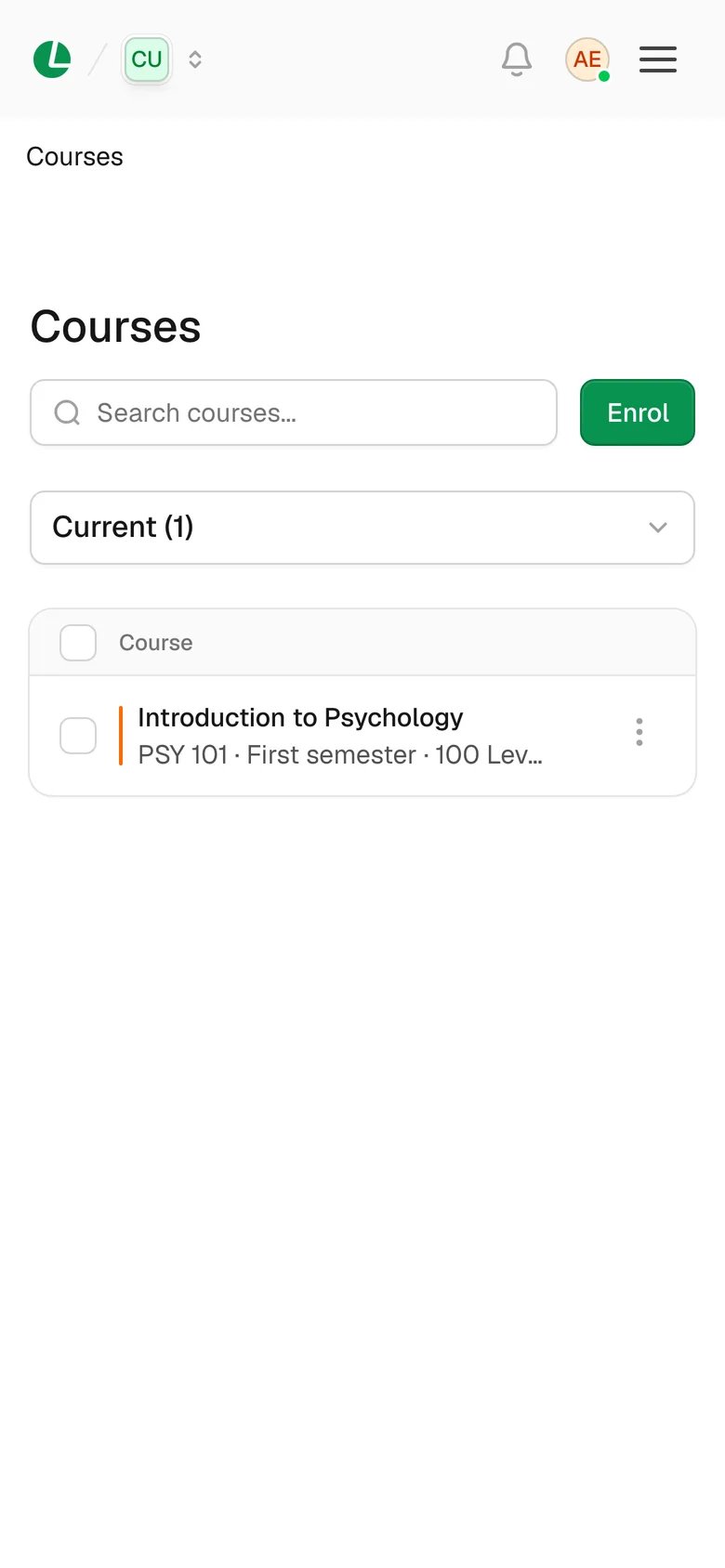
Lena for Students on a phone.
Finding your way on a phone
- The sidebar becomes a menu. Tap the menu button at the top left to open it; everything from the sidebar is there, Search included.
- Tabs become a menu. On a course page, for example, tap the section name to choose Details, Outline, Study Materials or People.
- The school switcher shows only your school’s picture. Tap it to switch school.
- Ask Lena (Lena for Teachers) is a round button at the bottom of the screen.
- Teachers tap the search icon in the top bar to search. When you grade, Prev and Next stay at the bottom of the screen.
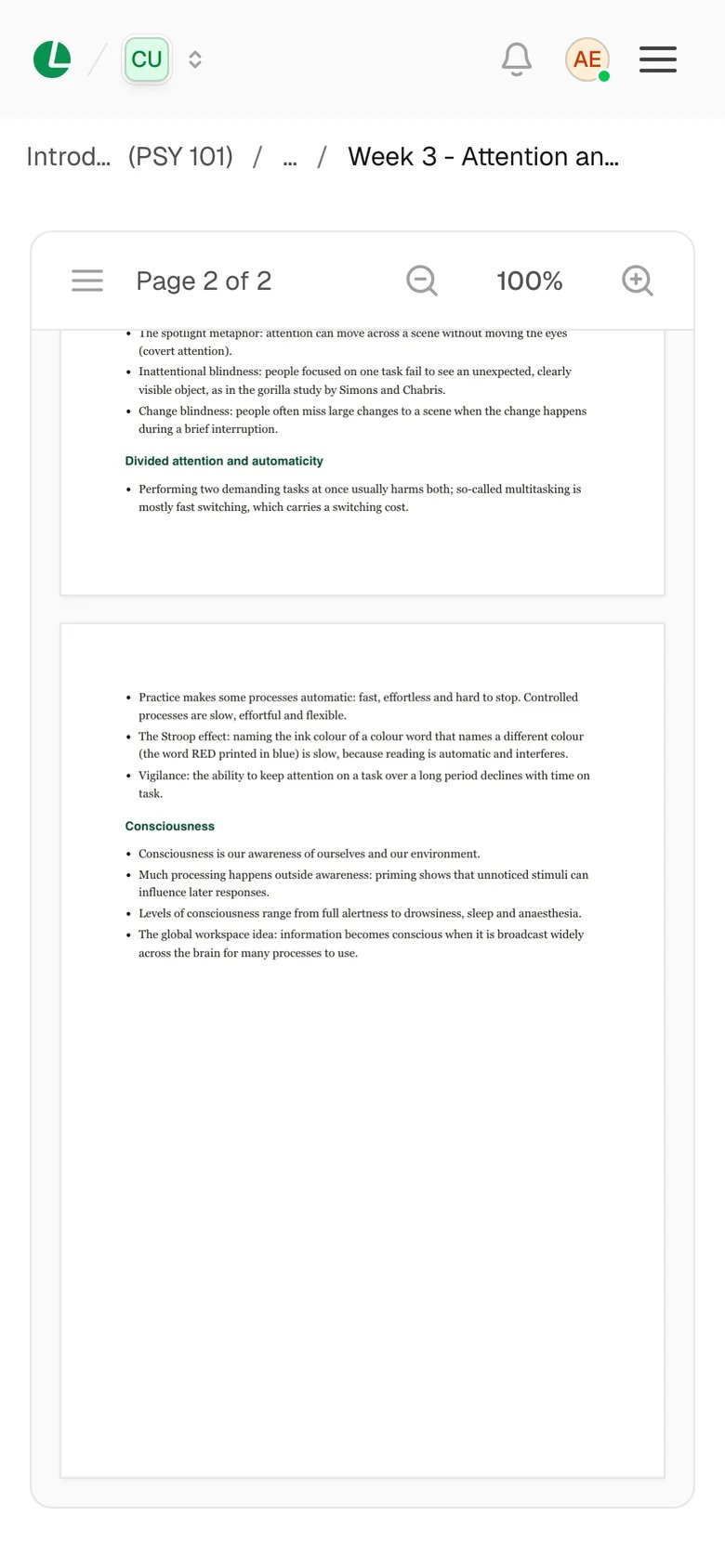
Course notes open inside Lena, on a phone too.
Install Lena from your browser
You can add all three apps to your home screen from your browser. Lena then opens like any other app, and opens without a connection too. You don’t need an app store.- Android
- iPhone and iPad
- Computer
In Chrome, open the app’s address, tap the ⋮ menu, then Install app or Add to Home screen.
Without a connection
Lena keeps your current courses on your phone or computer, so it opens and you can find your way around with no connection. Once you’re back online, everything catches up by itself within seconds. A small bar tells you where things stand. On a phone it sits under the top bar; on a computer, at the bottom left.- Students
- Teachers
- School admins
What you can see offline: your current courses and their study materials, announcements, your assignments,
quizzes and exams with your own work and results, and your grades. Lena fetches these the first time you open the
app online, so you don’t have to open each page first. An assignment’s question and rubric, and a course’s outline
and People, show offline only if you’ve opened them before. A file you’ve never opened needs a connection. So do
past courses, discussions, the calendar and joining a course.What you can do offline:
- Hand in an assignment, with files too. You’ll see “Submission queued”. Lena keeps your work on this device and sends it, files and all, as soon as you’re back online. The assignment shows “Submission saved” until then.
- Answer a quiz or exam you’ve already started. Each answer is saved on your device the moment you choose it. Under each question you’ll see “Saved on this device”, then “Sent” once it reaches Lena.
- Hand in a quiz or exam. You’ll see “Submission saved”. Lena sends it as soon as it can, even if you close the page, and the page changes to “Exam submitted” or “Quiz submitted” when it arrives.
- Mark a notification as read.
Keep your work safe
- Don’t sign out with work waiting. If something hasn’t been sent yet, Lena warns you first (“2 changes haven’t synced”). Choose Stay signed in, and it goes when you’re back online. Sign out anyway deletes it.
- On a shared computer, always sign out. Signing out removes your Lena data from that device.
- If your sign-in runs out while you’re offline, nothing is lost. Sign in again as yourself and your work is sent.
- Use one tab for a quiz or exam. A graded quiz can only be answered in one tab or on one device at a time.
- Lena keeps your current courses only. A course that has ended leaves your device; open it online.
Updates
Lena updates itself. When a new version is ready, you’ll see “A new version is available”. Choose Refresh now, or choose Later to finish what you’re doing first. Update available then waits for you in the sidebar and the account menu. After an update, a What’s new window tells you what changed. To see it again, open the account menu and choose What’s new, or read What’s new on Lena’s website.Troubleshooting
“This page isn’t available offline”
“This page isn’t available offline”
Lena hasn’t kept this page on this device. Open it again once you’re back online.
“We couldn’t reach Lena”
“We couldn’t reach Lena”
This isn’t saved on your device yet, and Lena isn’t answering. Wait a moment and try again.
“You need a connection to start this quiz.” or “…to start this exam.”
“You need a connection to start this quiz.” or “…to start this exam.”
You can’t start a graded quiz or an exam offline. Reconnect, then start it. Once it’s started, you can keep
answering if the connection drops.
“Your assignment couldn’t be submitted” or another change was refused
“Your assignment couldn’t be submitted” or another change was refused
Lena got your work but couldn’t accept it, for example because the deadline had passed by the time it arrived. The
message says why. For an assignment, choose Open your work: it’s still there, so you can check it, send it
again, or talk to your lecturer.
“Exam received” and “Your school’s server is busy”
“Exam received” and “Your school’s server is busy”
Your exam, quiz or assignment reached Lena in time and is being saved. You can close the page. If Lena later says it
wasn’t saved, choose Send it again: your work is still on your device and you won’t redo anything.
“Close your other Lena tabs”
“Close your other Lena tabs”
An older Lena tab is stopping this one from sending your work. Close the other tabs, then reload this one.
“Lena has been updated”
“Lena has been updated”
Choose Reload so your work keeps sending. Nothing you’ve done is lost.
“This device is full”
“This device is full”
Lena reads from the internet instead of your device until there’s space again. Your work is safe. Free up space on
your phone if you can.
Something looks out of date
Something looks out of date
Get online and open the page again: Lena catches up within seconds. If a file or picture still looks old, go to
Settings → Preferences and choose Clear cache.
Next
Notifications
Get told when something needs you, on your phone too.
Take a quiz
How quizzes work, including what happens if you lose connection.