Build a multiple-choice quiz, publish it, and release the results when it closes.
A quiz is a set of multiple-choice questions that Lena marks for you. A graded quiz is timed and counts toward the
course’s grade; a practice quiz is for students to test themselves. Owners, teachers and assistants can draft a quiz;
owners and teachers publish it.
In the sidebar, open the menu beside New course and choose New quiz. You can also go to Quiz and
choose New.
2
Choose the course and name it
Choose the Course and enter a Quiz name, such as “Week 2 quiz: Memory”.
3
Choose the type
Under Quiz type, choose Graded or Practice (see below). Multiple choice is the only question type.
4
Set the marks and time
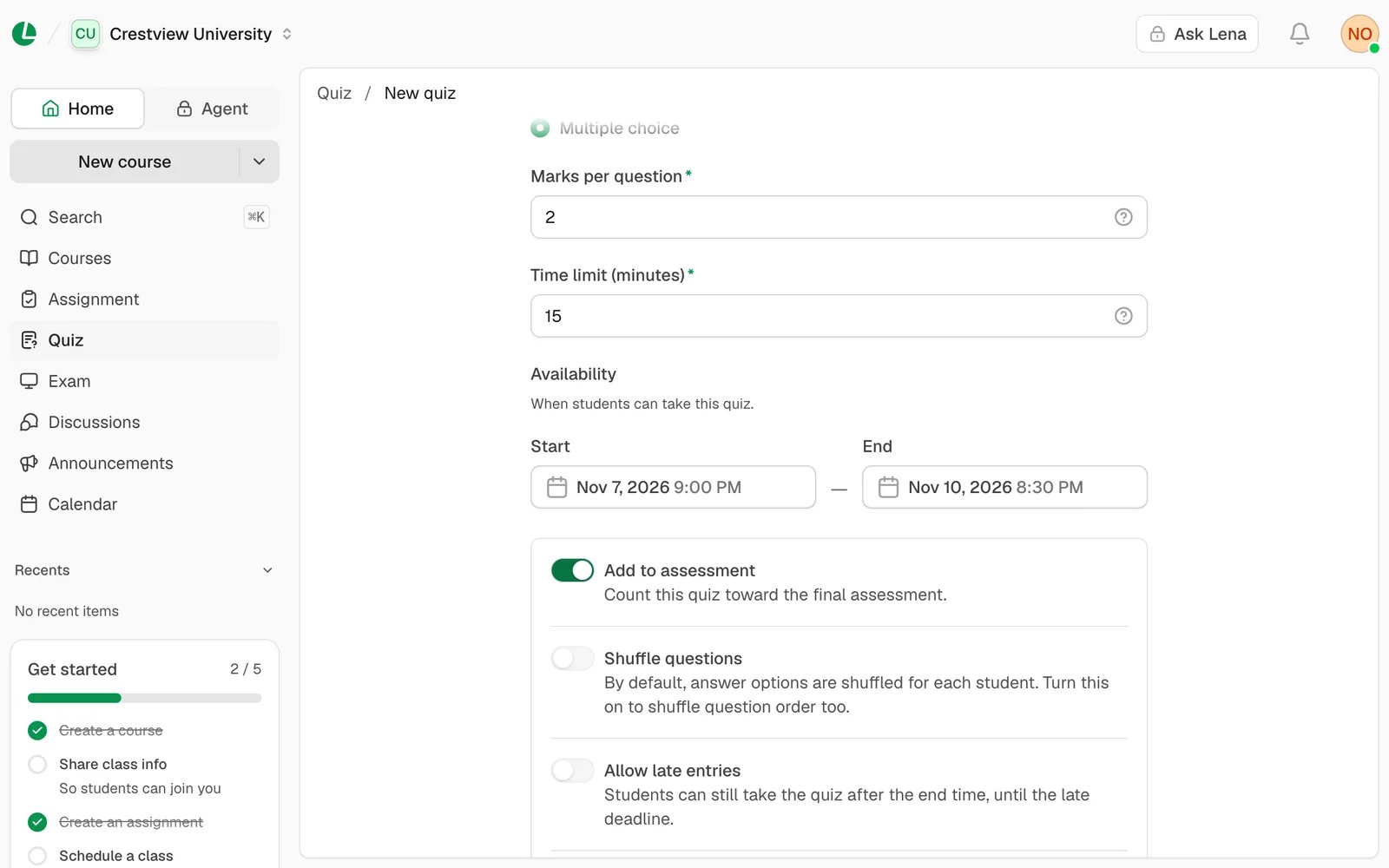
Enter the Marks per question; the total grows as you add questions. For a graded quiz, enter the Time limit
(minutes) and the Start and End of the window students can take it in.If your students’ connections are patchy, you can also set an Offline allowance (minutes). See when a student’s connection drops.
A graded quiz: 2 marks a question, 15 minutes, open for three days.
5
Choose the rules
Add to assessment: count it toward the final grade.
Shuffle questions: answer options are always shuffled for each student; this shuffles the question order too.
Allow late entries: students can still start it after the end, until the Late deadline.
Release results automatically: students see their grades and the answers as soon as the quiz closes. Leave
it off to release them yourself.
6
Create it
Choose Create quiz. It’s saved as a draft, ready for questions.
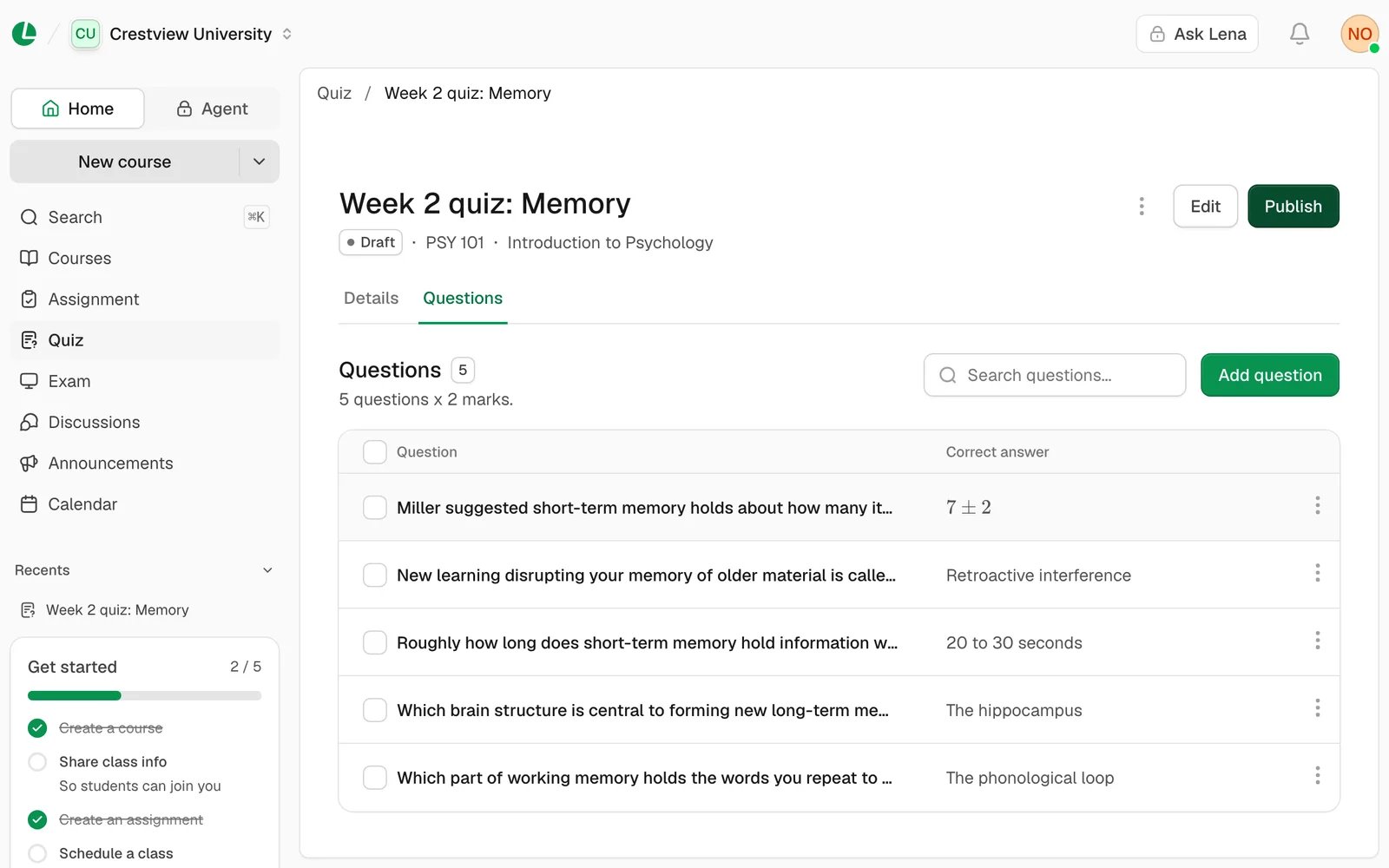
Open the quiz, choose the Questions tab, then Add question.
2
Write the question
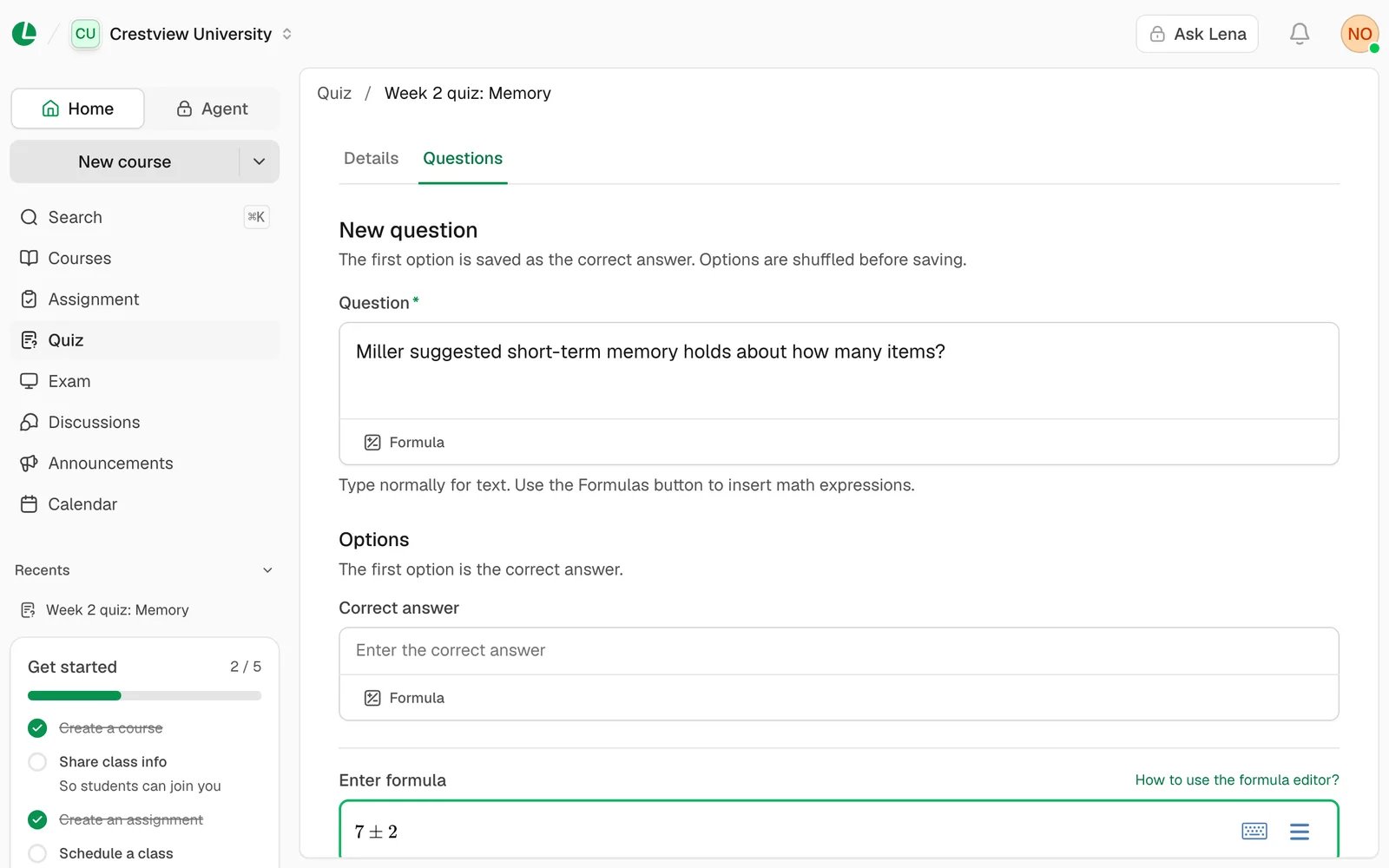
Type it in Question. For maths, see formulas below.
3
Put the right answer first
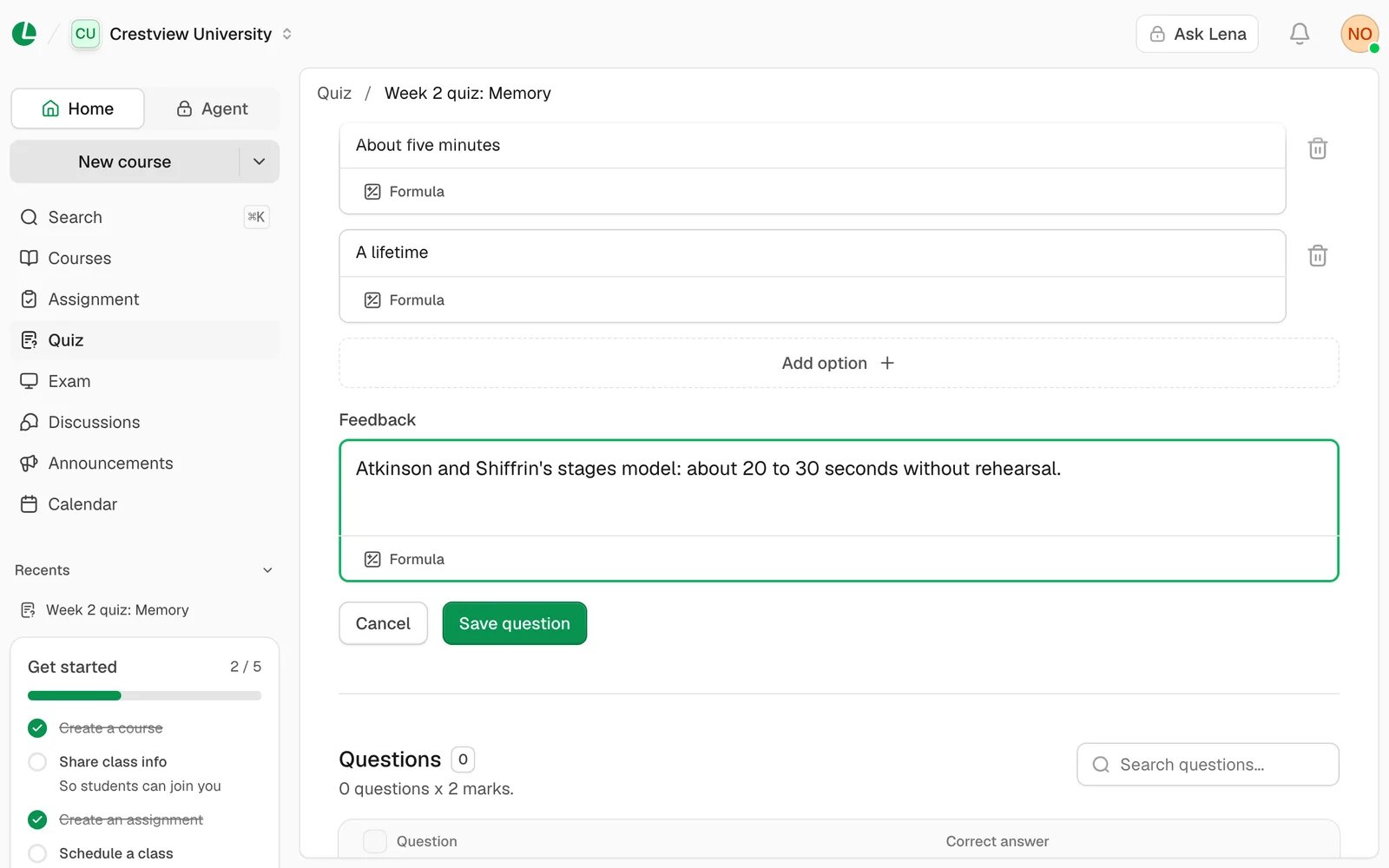
The first option, Correct answer, is the right one. Add the wrong ones below it; use Add option for more
than two. Students see the options in a shuffled order, so the right answer isn’t always first.
The right answer always goes in the first box.
4
Add feedback, if you like
Feedback is a note students see with the answers: straight away on a practice quiz, and once results are
released on a graded one.
5
Save it
Choose Save question. The form clears for the next one. Choose Cancel when you’re done.
Each question in the list has a menu with Edit question, Preview question and Delete question.
In the question or an option, choose Formula. A formula box opens under the field. Type the expression, such as
x^2 for x squared, and choose Insert. To change a formula, click it, edit it, and choose Update.
Choose Publish. Lena checks that the quiz has questions and that each has a right answer. For a graded quiz it
also checks the dates, and a dialog says what’s wrong:
Dialog
Why
What you can do
Start date is in the past
Students will see it as already open.
Edit, or Publish anyway
Add a start date
There’s no start date.
Edit the dates
Due before it opens
The end is before the start.
Edit the dates
The deadline has passed / Dates are in the past
The end has passed, so nobody could take it.
Edit the dates
Then choose Publish in Publish quiz?.A published quiz can’t go back to drafts, and its questions are locked. While it’s open or waiting for release, you
can still choose Extend deadline to give students more time.
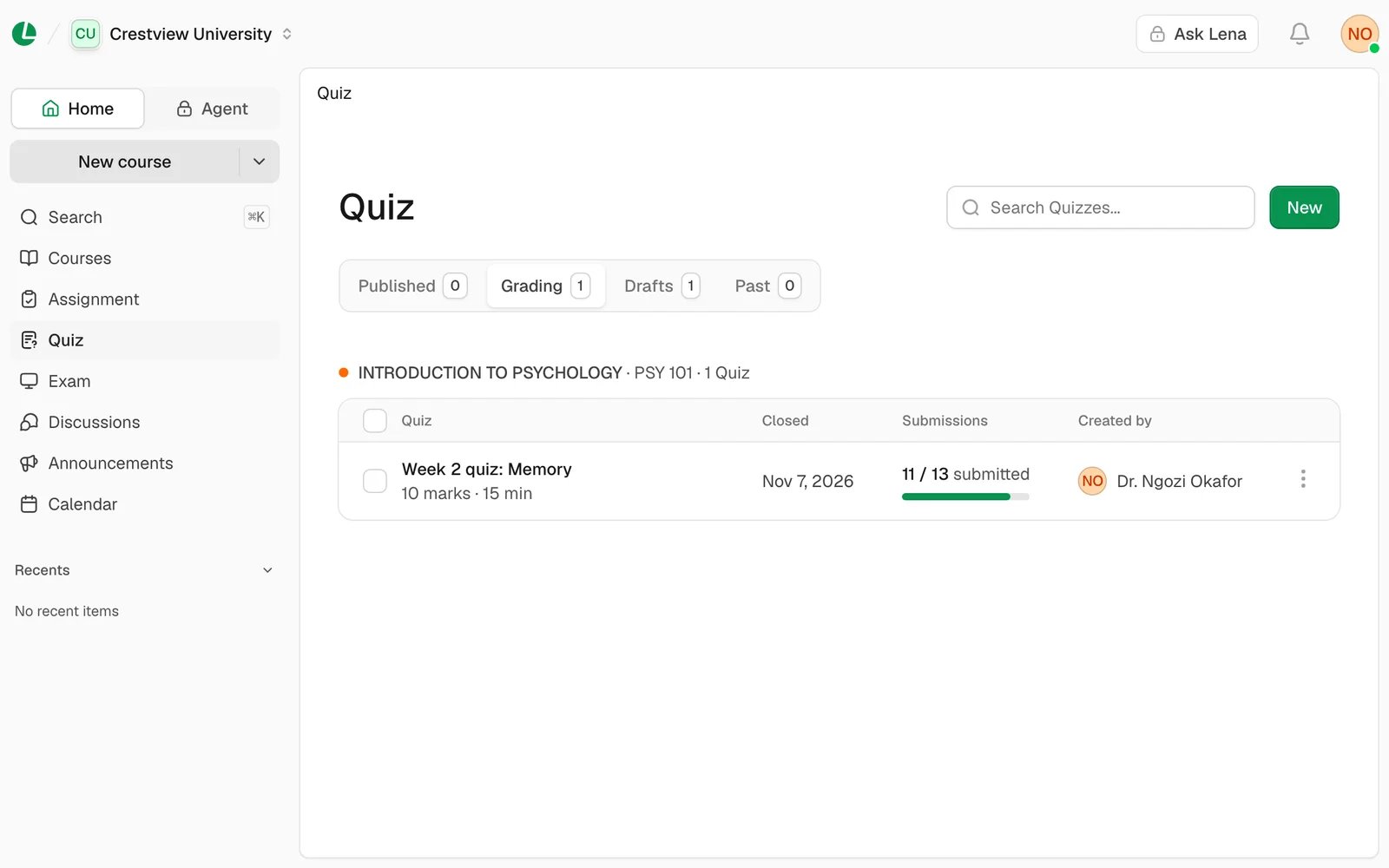
When a graded quiz closes, it moves to the Grading tab of the Quiz page. Students who took it see “Your results
aren’t released yet” until you release them.
1
Open the quiz
On the Quiz page, choose the Grading tab and open the quiz.
Closed quizzes wait in Grading until you release their results.
2
Check the submissions
The Submissions tab lists every student on the course: Graded, Not taken or Not submitted. Open
one to see their answers and how long they took.
3
Release
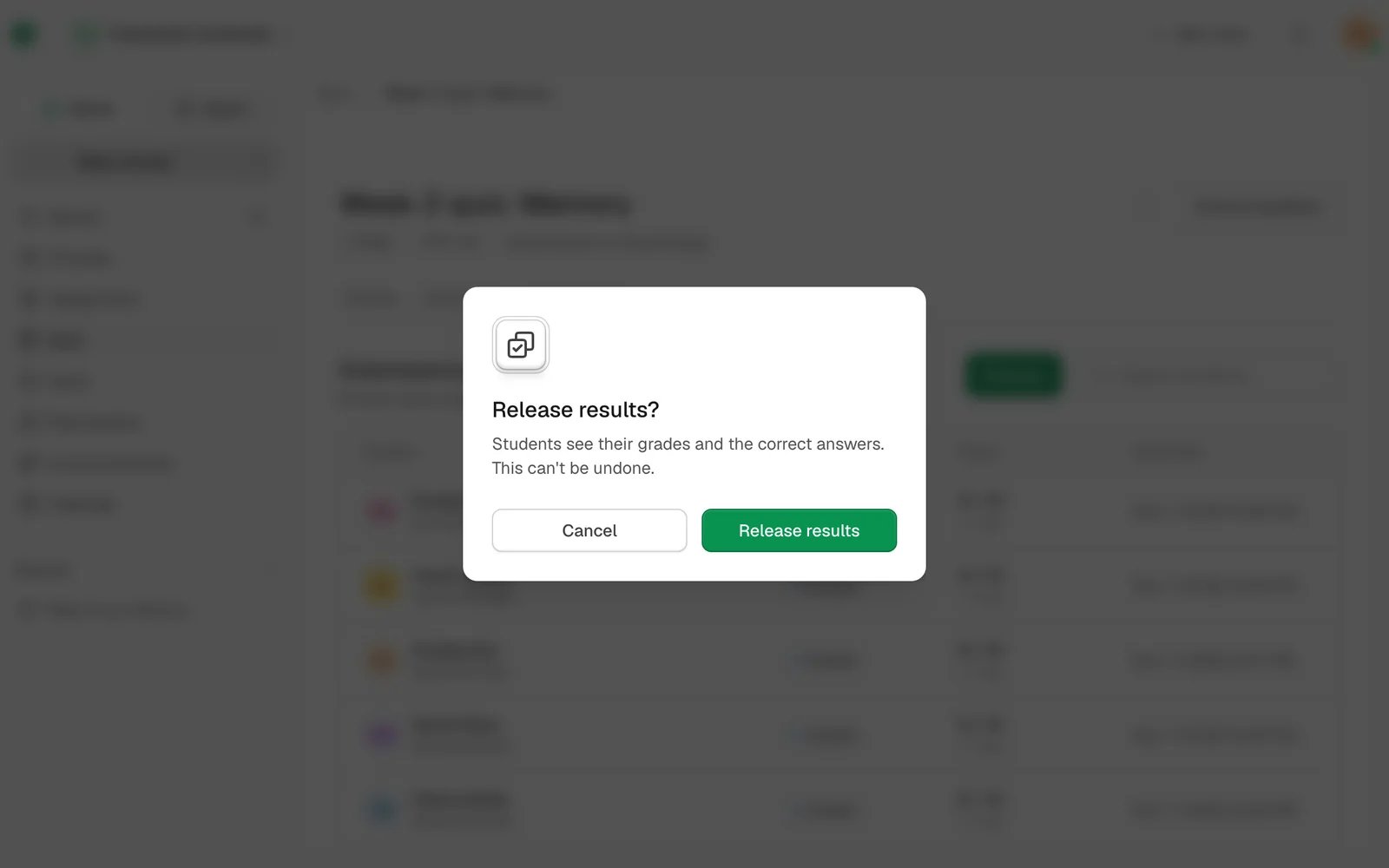
Choose Release, then Release results. Students see their grades, the correct answers and your feedback.
Releasing results is final.
Releasing can’t be undone, and it closes the quiz. A quiz set to Release results automatically skips this step and
goes straight to Past.
Students can keep answering offline once they’ve started. Each answer is saved on their device and sent when they
reconnect, and Lena judges it by when they chose it, not when it arrived. An answer chosen before time ran out
counts if it reaches Lena within 5 minutes of time being up. One chosen after time was up never counts.If 5 minutes isn’t enough for your students’ connections, set an Offline allowance (minutes) when you create or
edit a graded quiz: from 0 to 30, and 0 to start with. Answers chosen in time are then taken until that many minutes after
time is up. Keep it as short as your students need: results released automatically wait for it too.If a student’s hand-in is still on its way when you try to release, Lena asks you to wait: see
troubleshooting.
Only drafts can be edited. Once a quiz is published, the only thing you can change is its deadline.
Duplicate quiz (from ⋮) makes a draft copy with its questions; set new dates before you publish it. Delete
quiz removes it, its questions and its submissions.
Your quizzes are in four tabs:Published, Grading, Drafts and Past. Published practice quizzes
are listed under Past.
Graded quizzes run in full screen. Each time a student leaves the page or full screen, they’re locked out for a
short while, as in an exam.