

Start one
1
Start a new discussion
In the sidebar, choose Discussions, then New.
2
Choose the course and give it a title
Pick the Course, and enter a Title. A question works well, such as “Where have you seen attention fail in
everyday life?”
3
Choose what you’re sharing
- Text: write what you want to say.
- Photo: add up to 4 photos, with a Caption if you like.
- Link: paste the Link, and add a Caption saying why you’re sharing it.
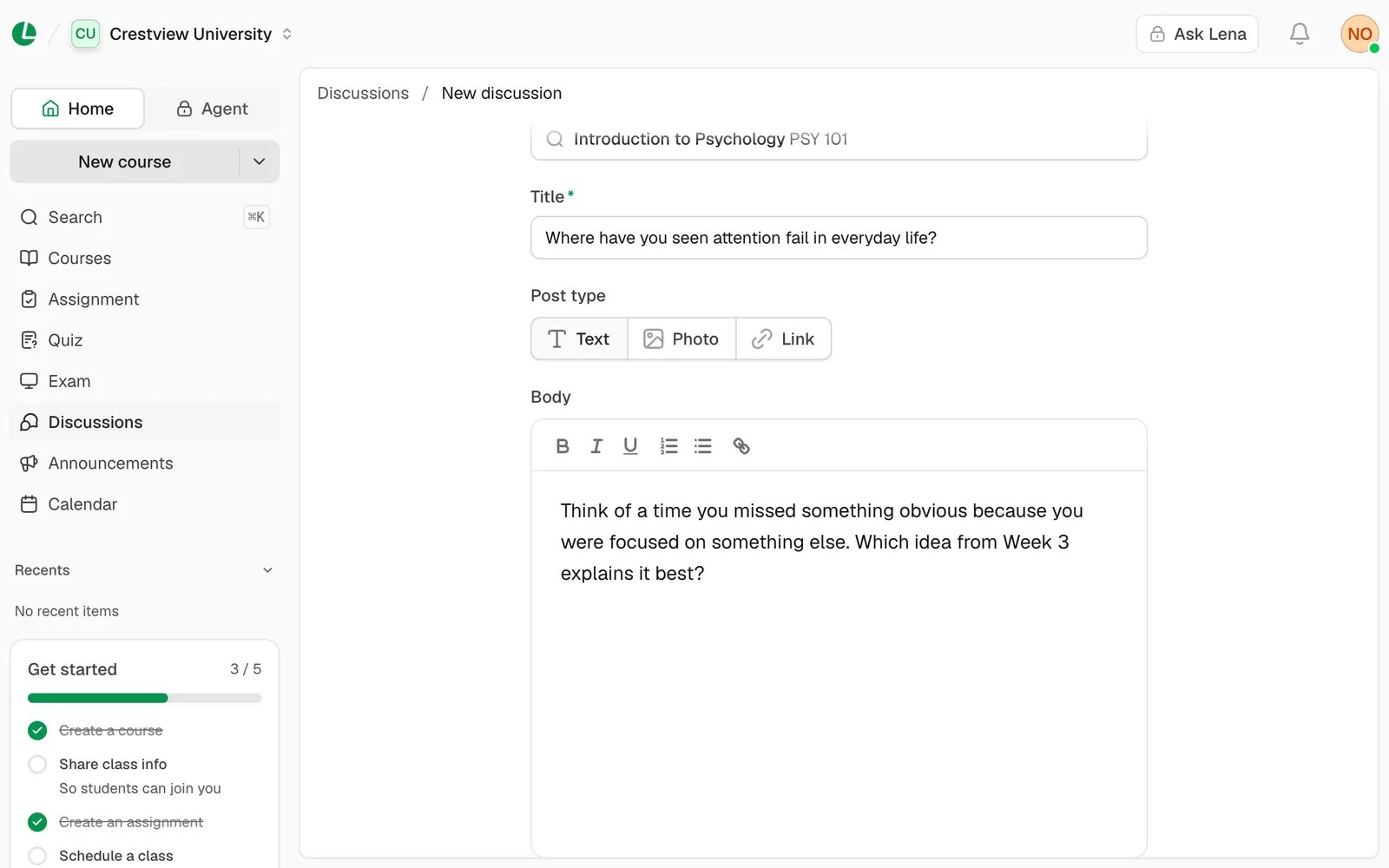
A text discussion for Introduction to Psychology.
4
Post it
Choose Post discussion. It opens, ready for comments.
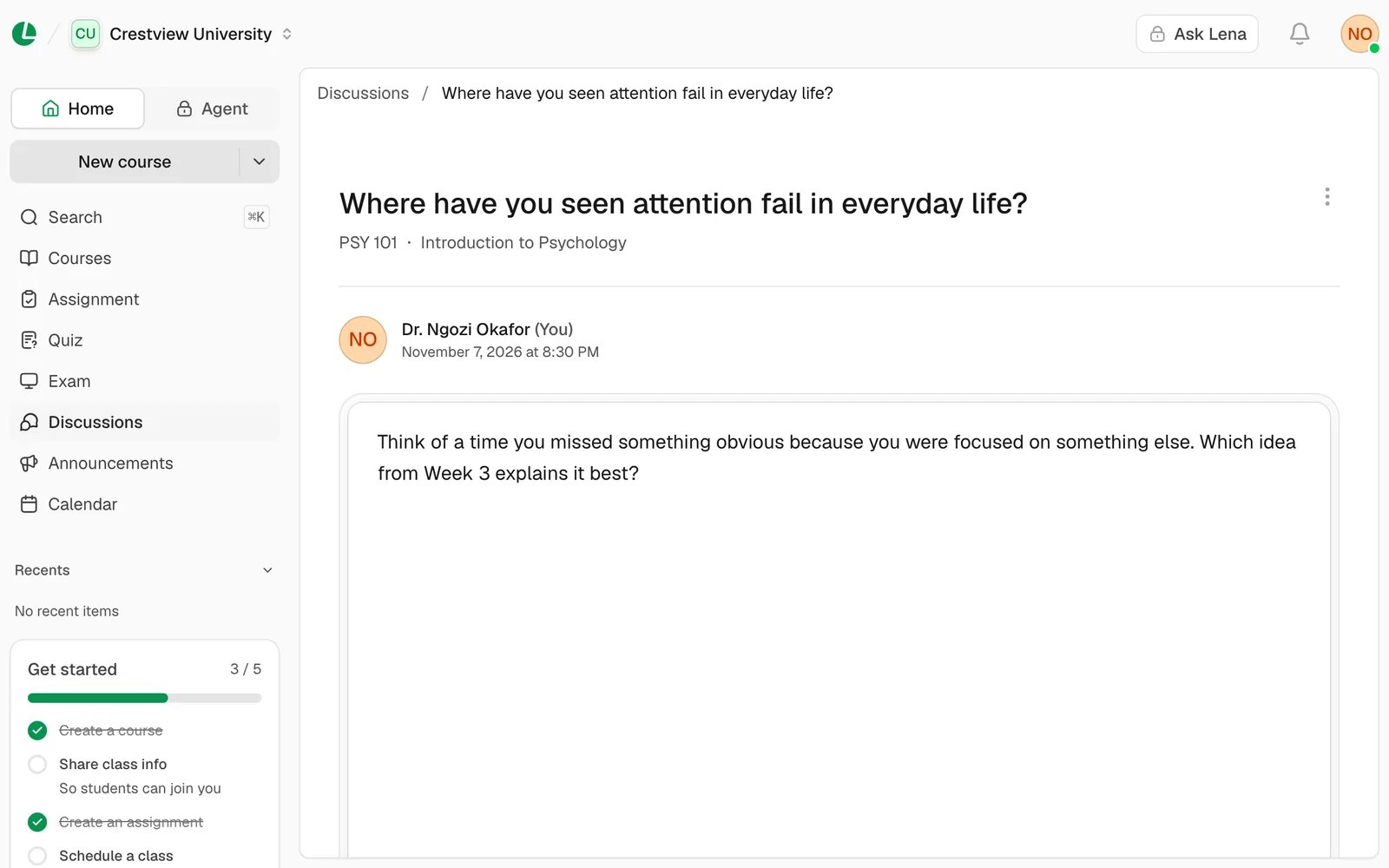
The posted discussion, with comments below it.
Comment and reply
- To comment, type in Add a comment… and choose Post comment.
- To answer a comment, choose Reply under it. To read the replies to a comment, choose View 2 replies (the number changes).
- To change your own comment, use its ⋮ menu and choose Edit.
Look after the conversation
Open the discussion and choose ⋮:- Mute notifications stops reply notifications for this discussion. Unmute turns them back on.
- Edit changes the discussion. Only its author sees this.
- Delete removes the discussion and all its comments.
Past discussions
When a course ends, its discussions move to the Past tab on Discussions. They’re read-only: nobody can comment or edit, but everyone can still read them.Troubleshooting
My course isn’t in the Course list
My course isn’t in the Course list
The list shows only published courses. Publish the course first.
Post discussion stays greyed out
Post discussion stays greyed out
Choose a course and enter a title. Then add what you’re sharing: some text, at least one photo, or a valid web
address for a link.
“This discussion is read-only: its course has ended.”
“This discussion is read-only: its course has ended.”
The course is over. Start the conversation in this term’s course instead.
Next
Post an announcement
Send a notice to everyone on a course.
Notifications
Choose what Lena tells you about.