

Add a class
1
Start a new class
In the sidebar, choose Calendar, then Add. In Day view or Week view you can also choose an empty
slot to start a class at that time.
2
Name it and choose the course
Enter a Title, such as “PSY 101 lecture”, and pick the Course.
3
Set the date and time
Under Date & time, set when it starts and ends. To run a class past midnight, pick a later end date.
4
Make it repeat
Choose how often under Repeat, and if it should stop, set Repeat until (optional).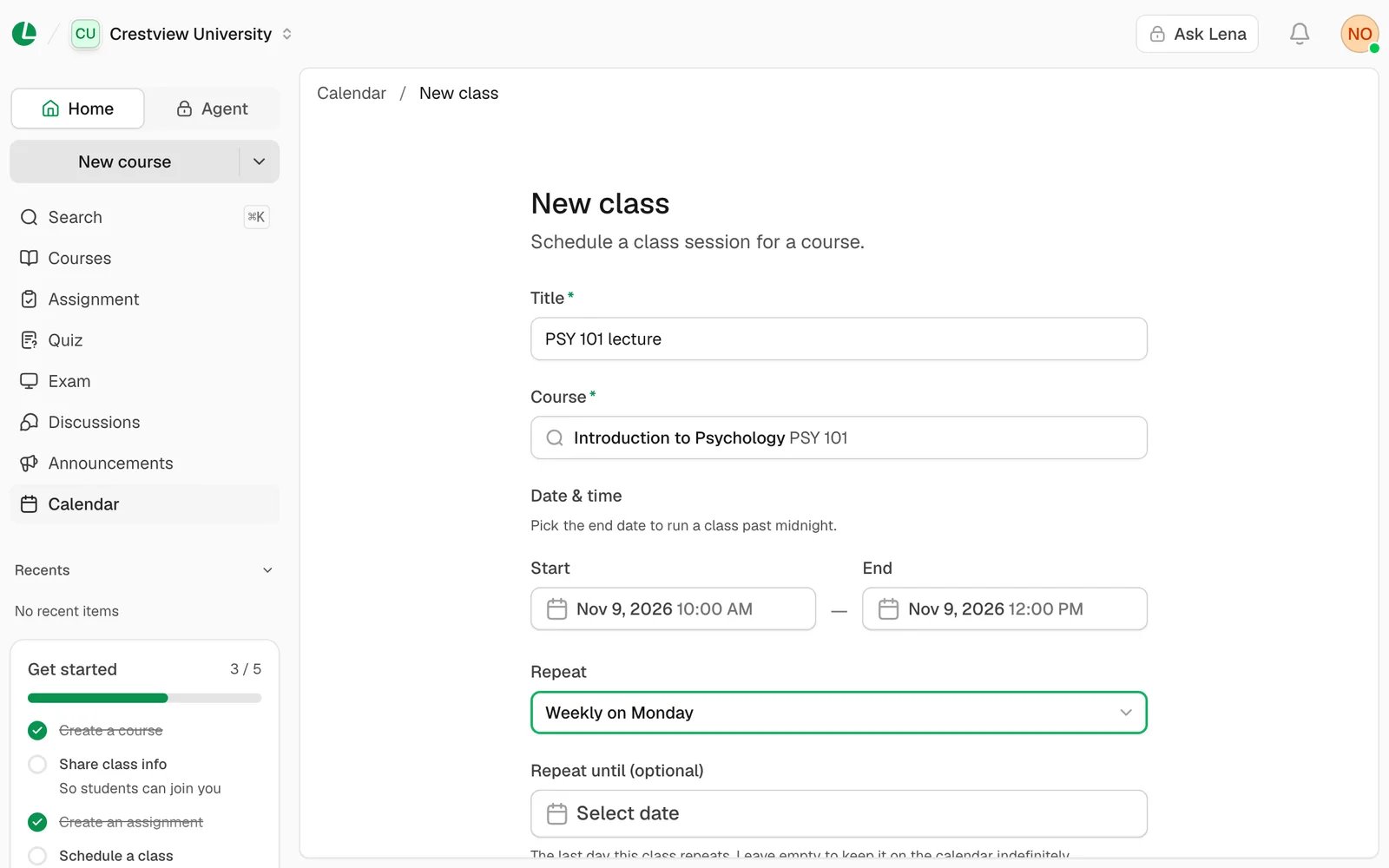
A two-hour lecture every Monday.
5
Add it
Choose Add class. It appears on your calendar.
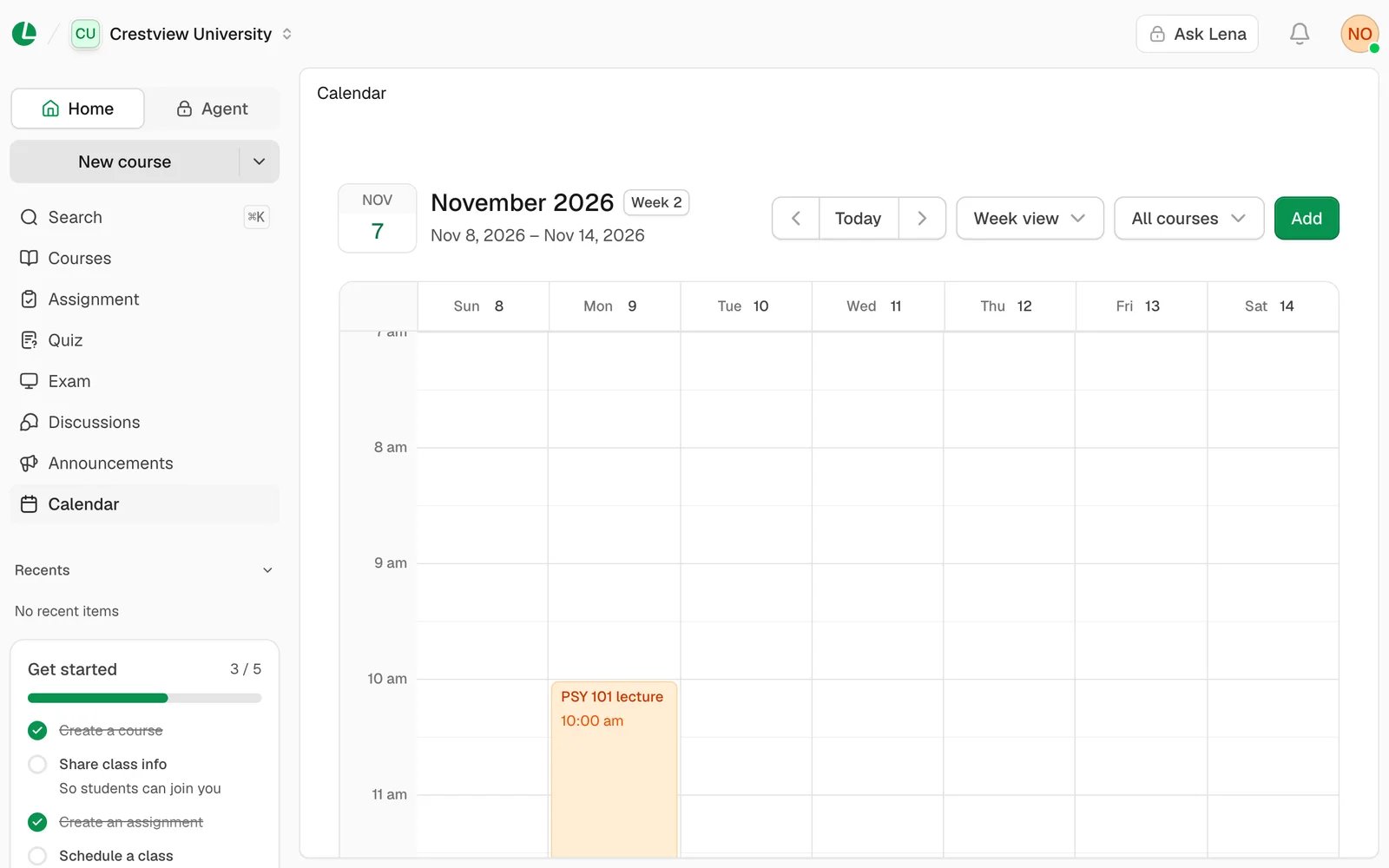
The lecture on the week view.
Repeat options
Leave Repeat until (optional) empty to keep a repeating class on the calendar with no end.
Change or delete a class
Choose a class on the calendar to see its details.- Edit class opens the form. Make your changes and choose Save changes. The course can’t be changed.
- Delete class removes it. This can’t be undone.
Find your way around
- Switch between Day view, Week view and Month view. The arrows move back and forward; Today brings you back.
- All courses filters the calendar to one course.
- To open the calendar in the same view every time, go to Settings, then Preferences, and set Default calendar view. See settings.
Troubleshooting
“The end must be after the start.”
“The end must be after the start.”
The end time is before the start time. For a class that runs past midnight, pick the next day as the end date.
“Pick at least one day.”
“Pick at least one day.”
With Custom…, tick at least one day under Repeat on.
My course isn’t in the Course list
My course isn’t in the Course list
The list shows only published courses. Publish the course first.
Next
Post an announcement
Tell students about a change to the timetable.
Create an assignment
Set work with a deadline students can see.