Break an assignment’s marks into criteria and levels, so you grade consistently and students know what you look for.
A rubric splits an assignment’s marks into criteria, each with levels such as Excellent, Good and Needs work. You
grade by picking a level for each criterion, and students see the rubric as soon as the assignment is published. An
assignment can have one rubric, added while it’s a draft. Practice assignments can’t have one.
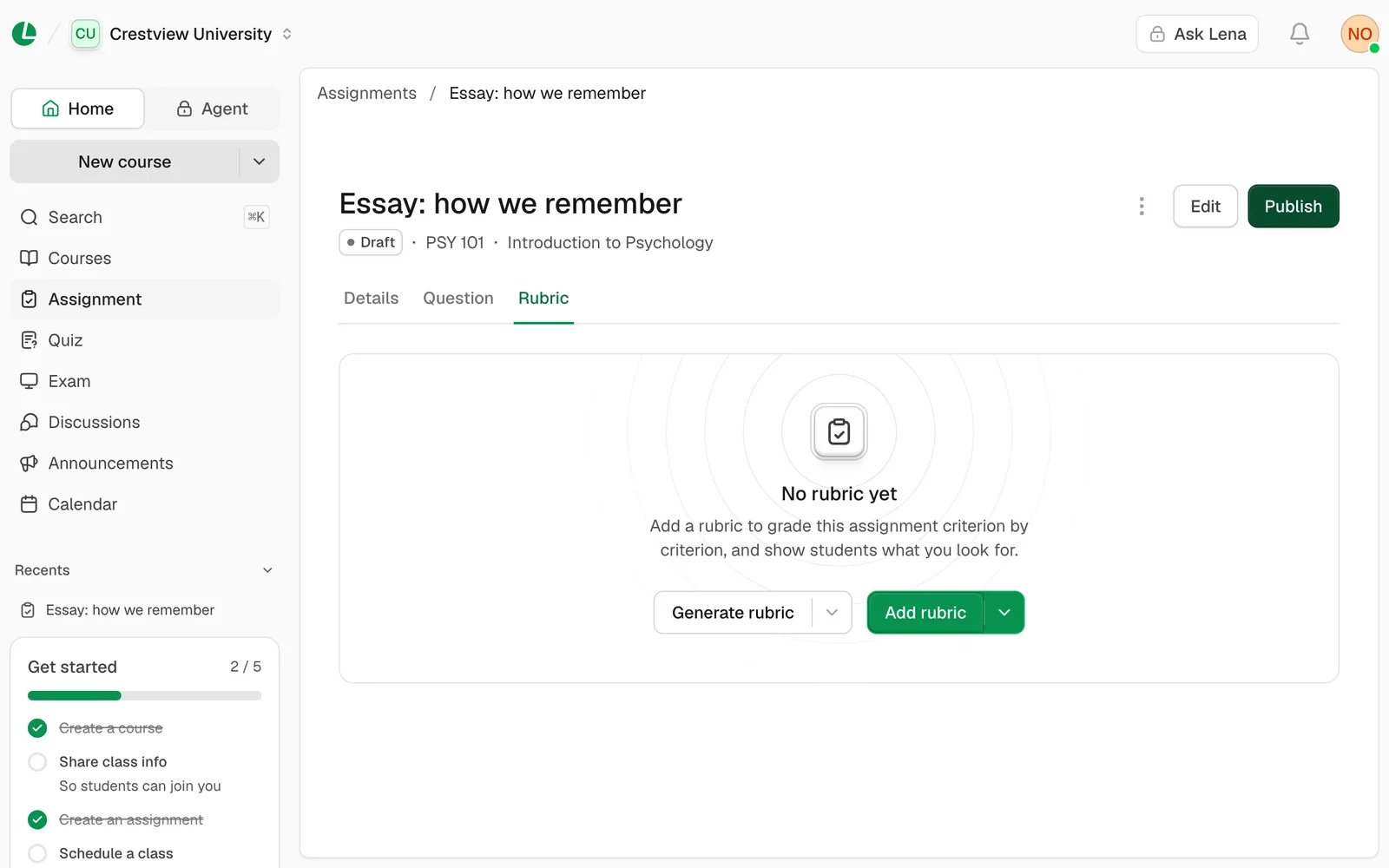
Open the draft assignment and choose the Rubric tab.
A draft assignment with no rubric yet.
2
Choose Add rubric
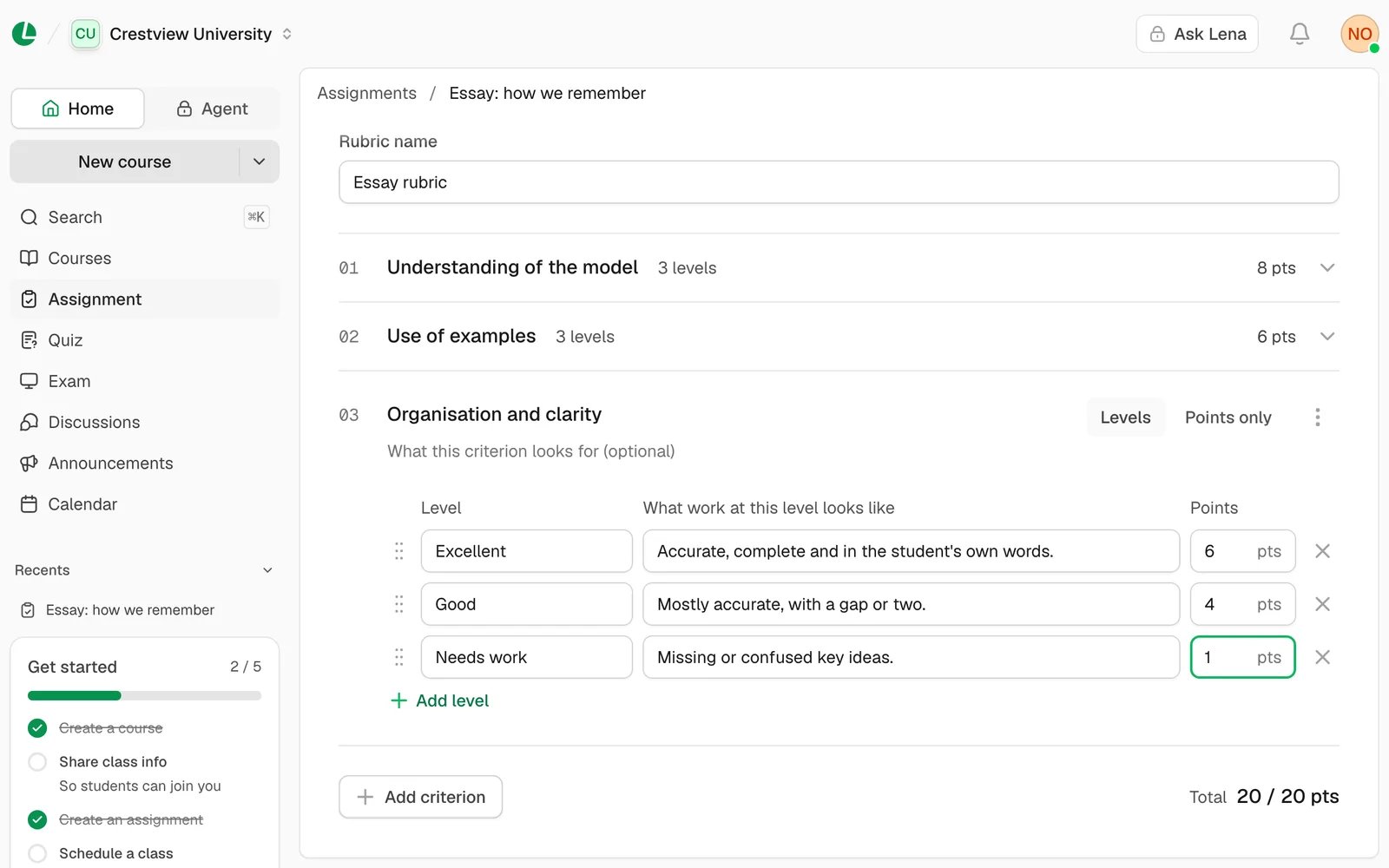
The editor opens. Enter a Rubric name, such as “Essay rubric”.
3
Describe the first criterion
Give it a title, such as “Understanding of the model”, and a description if you like. Then choose how it’s scored:
Levels or Points only (see below).
4
Fill in the levels
A new criterion starts with three levels: Excellent, Good and Needs work. For each, describe what work at that
level looks like and give it points, best level first. Use Add level for more, the remove button for fewer, and
the handle to drag a level up or down.
5
Add the other criteria
Choose Add criterion for each one. A criterion’s menu has Move up, Move down and Delete criterion.
6
Make the total match the marks
The Total at the bottom adds up each criterion’s top points. It must equal the assignment’s marks; until it
does, the editor says how many points short or over you are.
Three criteria worth 8, 6 and 6 points make the assignment’s 20 marks.
7
Save it
Choose Save. Until you publish the assignment, you can change it with Edit on the Rubric tab.
Scored by
How you grade
Use it for
Levels
Pick one level per criterion. You can also type points between two levels.
To reuse a rubric from another of your assignments, open the menu beside Add rubric and choose Copy rubric.
Pick the Assignment to copy from (this course’s come first) and choose Copy rubric. You can edit the copy
afterwards. If the assignment already has a rubric, the option is Copy another rubric in the Rubric tab’s ⋮
menu, and the copy replaces it.A copied rubric keeps its own total. If that differs from this assignment’s marks, the tab says so, and you’ll need to
edit it before you can publish.
If your school has Lena Agent, the empty Rubric tab also has Generate rubric. Lena reads
the assignment’s question and marks and drafts the criteria, levels and points to match.
1
Choose Generate rubric
On the draft assignment’s Rubric tab, choose Generate rubric.
2
Add details, if you like
Choose Add details to set the Number of criteria (leave it empty to let Lena decide) or write a Note for
Lena, such as “First-year level. Reward clear, accurate examples.”
3
Choose Generate
The draft opens in the editor, unsaved. Change anything you like, fix what the editor flags, and choose Save.
Already have a rubric on paper or in a file? Open the menu beside Generate rubric and choose Import from photo
or Import from document.Once the assignment has work handed in, Lena can also mark it against the rubric: see
marking with Lena.
Each criterion scored by levels needs at least two levels. Give each level different points, with the best
level at the top.
A rubric is fixed once the assignment is published. Students can see it from then on, so you can’t change it.
Save rubric on the Rubric tab downloads it as a PDF.
To remove a rubric, open ⋮ on the Rubric tab and choose Delete rubric. You can add one again while the
assignment is a draft.
Leaving with unsaved changes asks “Discard your changes?”: choose Keep editing or Discard changes.
What students see: the rubric on the assignment’s Rubric tab from the moment it’s published, and, once you
release grades, where their points landed on each criterion, with your comments.
See assignments for students.