Add a whole class to your school from an Excel sheet, check every row before anyone is added, and hand out their sign-in details.
Importing is the quickest way to bring in a class. You fill in Lena’s template, upload it, fix anything Lena flags, and
download a sheet of sign-in details to hand out. Superadmins and Academic admins can import. Set up your
structure first: every student is placed in it.
Go to Students, open More actions beside Invite, and choose Import.
2
Download the template
Choose Download template. It’s made for your school: you pick each student’s faculty, department and level
from a list in the cell.
3
Fill it in
Add one row per student on the Students sheet. The Instructions sheet says what goes in each column.
4
Upload it
Drag the file onto the page, or choose it. It must be an Excel (.xlsx) file, up to 10 MB.
5
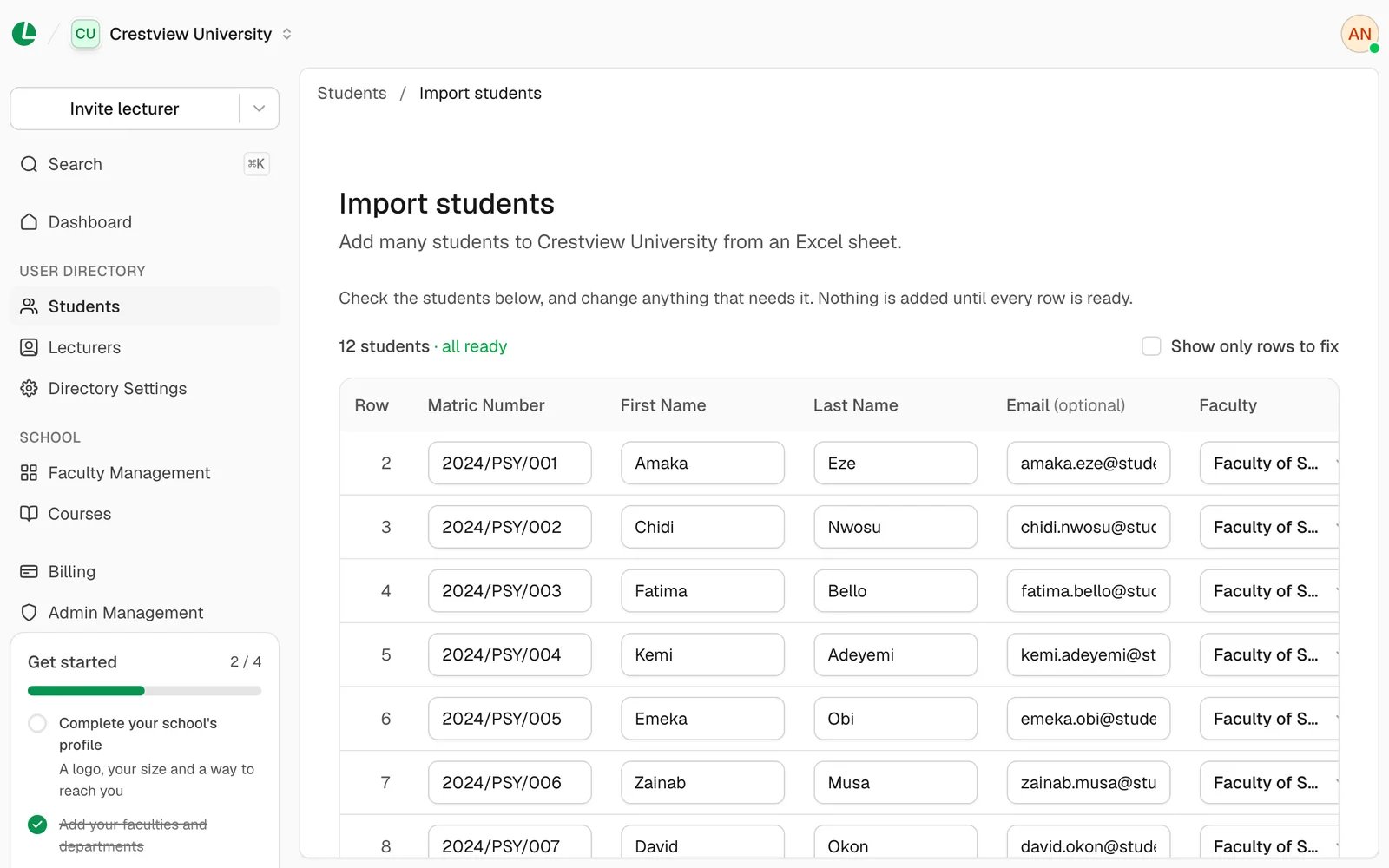
Check every row
Lena shows every student in a table. Nothing is added until every row is ready.
A red stop sign marks a problem to fix. A yellow triangle marks a warning. Hover over the sign to read it.
Correct a cell by typing in it, or remove the row with the bin icon.
Tick Show only rows to fix to see just the ones that need you.
The button reads Fix N rows to import until they’re all ready.
Every row checked and ready to import.
6
Import
Choose Import N students.
7
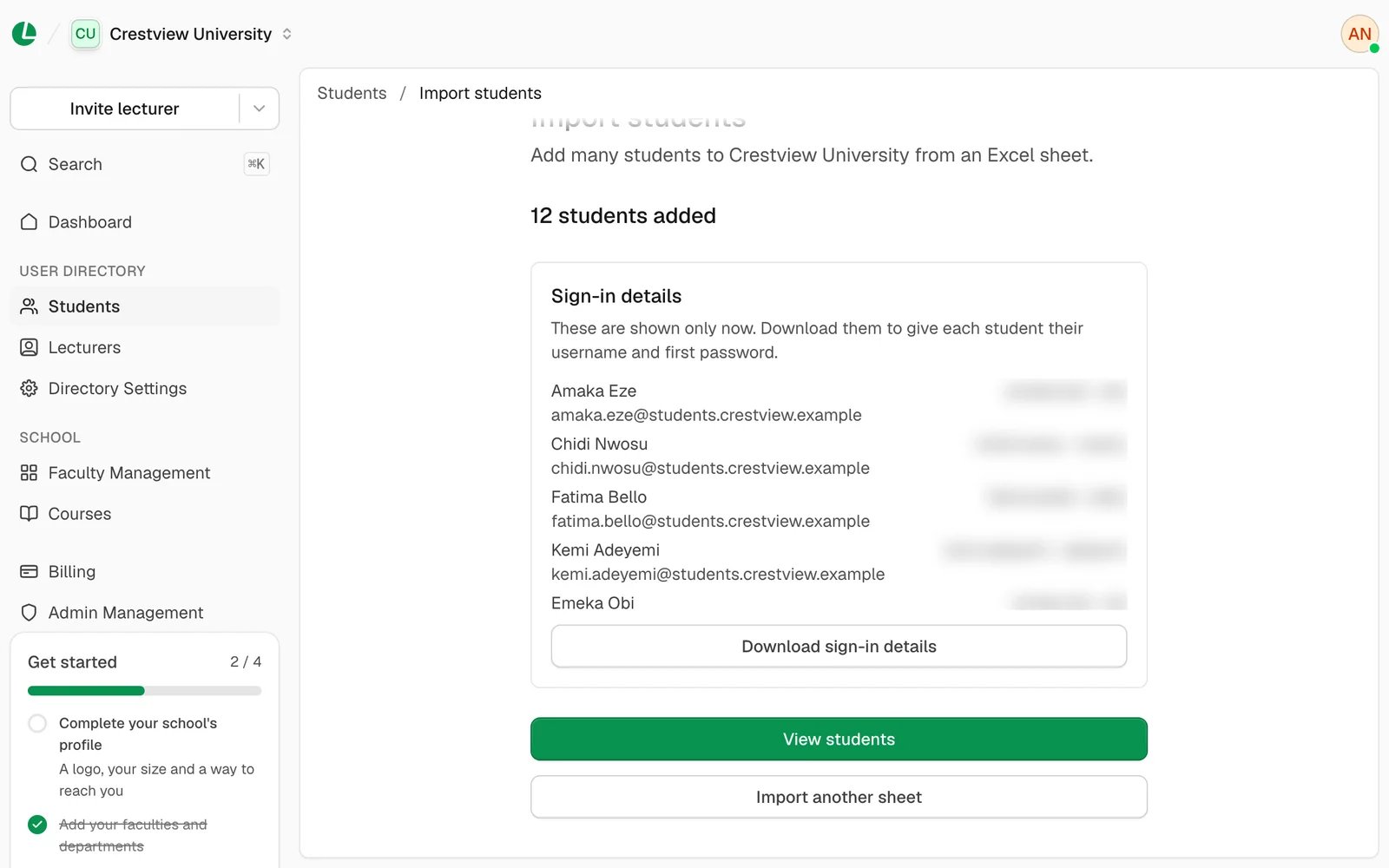
Download the sign-in details
Choose Download sign-in details to save a PDF with every new student’s sign-in details. It’s only offered
now, so download it before you leave the page, and keep it somewhere safe.
At a university or K-12 school, imported students aren’t emailed. Give each student their own sign-in details from the
PDF, privately: never post the sheet where others can see it. They sign in to
Lena for Students with them.Ask students to change their password as soon as they’re in; see settings. A student who already had a Lena
account keeps the password they have, and the result screen says how many did.At other schools, each student is emailed an invitation to the address in the sheet and signs in with it, so the
result says “invited” rather than “added”.
“That doesn’t look like the template. It has no … column.”
A required column is missing or renamed. Download the template again and copy your rows into it.
“Only Excel (.xlsx) files can be imported”
Open the file in Excel, Google Sheets or LibreOffice, and save or download it as an Excel (.xlsx) file.
“Same as row N.”
Two rows share a matric number or email. Remove the duplicate, or correct one of them.
“'…' isn’t one of your grades.” or “'…' isn’t a department of …”
The place doesn’t match your structure exactly. Pick it from the list in the cell, or add it to your
structure and upload again.
“… has no arms set up, so it can’t be imported.”
Add arms to that grade in Grade Management, or add the student with Invite instead.
I lost the sign-in details PDF
Lena shows the sign-in details only once, straight after the import, and can’t show them again. A student with an
email address can set a new password with Forgot password? on the sign-in page; see sign in to
Lena. For students without an email address, contact
support.
“Enter a matric number.” or “Enter a valid email address.”
Fill in or correct the cell in the preview. The row turns ready once it’s right.